Excel Master Class- Basic to Advance
1. Interface Overview:
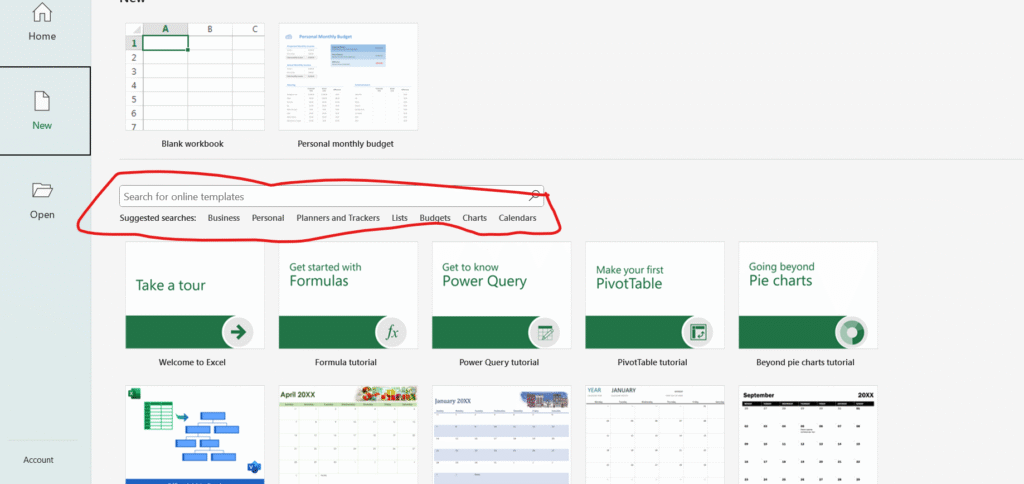
Open excel file from window menu-> More templates
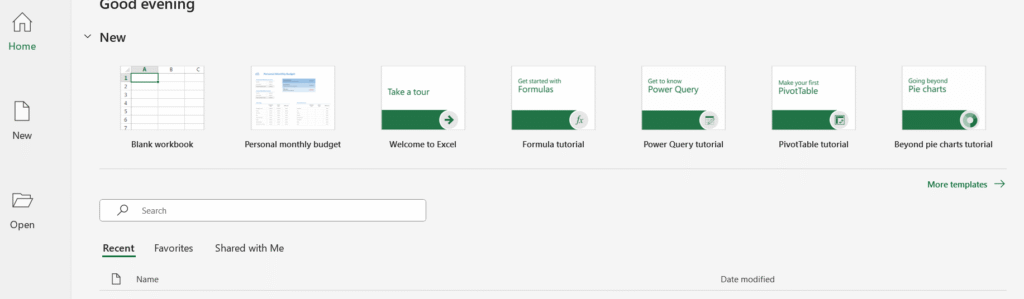
Select any one templets.
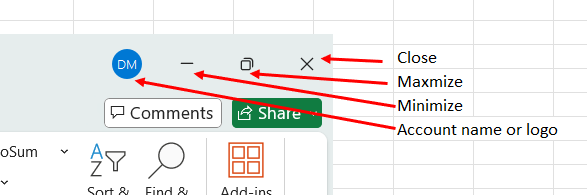
Quick Excess toolbar:

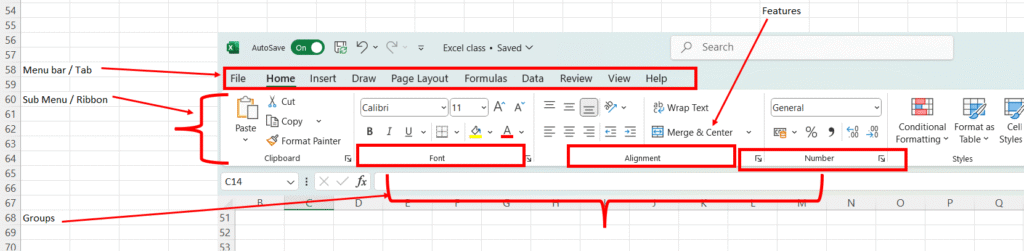
Menu bar:
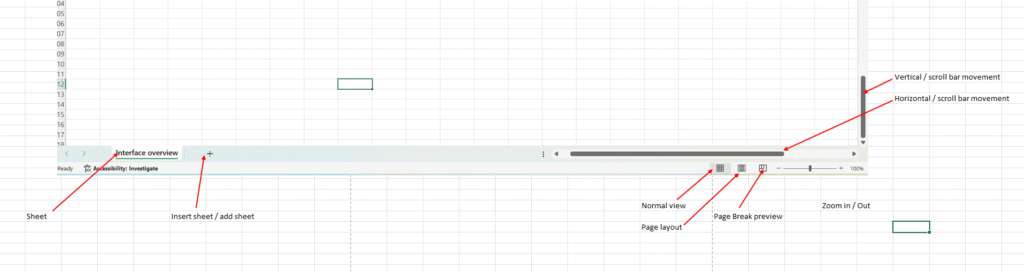
Footer Bar:
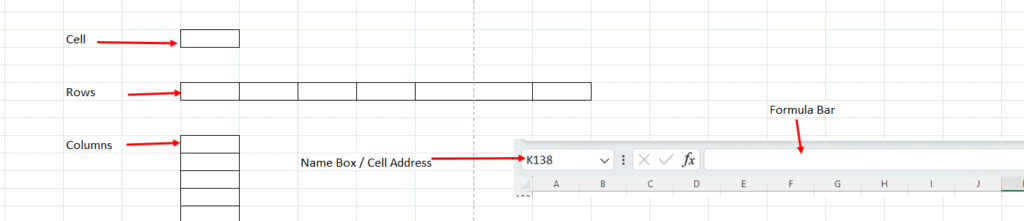
Cell, Rows, Column, Name box & formula bar:
2. Workbook & Worksheet:
- Workbook is different different excel files
- Worksheet is different different excel sheets.
3. Save File:
- Save As for first time save- Ctrl + S ,(F12 (shortcut key))
- Save for Save file ( Ctrl + S shortcut key)
4. Movement Shortcut Key:
- Movement through Mouse
- Movement through keyboard
- Arrows- left, right, up & down
- Right – Tab key
- Left – Shift + Tab key
- Up – Shift + enter key
- Down – Enter key
- Sheet movement from left to right — Ctrl + Page down
- Sheet movement from right to left – Ctrl + Page up
- Go to one workbook to other workbook – Ctrl+ Tab or Alt + tab
- Fast movement ( up side) – Page up
- Fast movement ( Down side) – Page down
5. Data entry shortcut key:
- How to edit data:
- Double click then edit
- Click on formula bar then edit
- Click on F2 key then edit
6. Selection with Shortcut key:
- Select all- Ctrl+ A
- Single click selection- Ctrl+Shift+A
- Single Cell selection- Shift + A
7. Adjustment of Cell, Column & Rows:
- Double click on Row or Column.
- Manually drag & drop process for Row or column adjustment.
- Ctrl+A – > Alt + HOI for only column adjustment
- Ctrl+A – > Alt+HOA for only row adjustment
8. Basic Formatting with shortcut key:
- Alignment – Center- >Alt+ HAC
- Bold-> CTRL+ B
- Font- Calibri
- Size- 12 for heading
- Highlight Cell colour-> ALT+HH
- Font colour-> ALT+HFC
- Border- all borders->Alt+HBA
- All thick border- select area- more border -> ALT+ HBM
- Thick outside border-> Alt +HBT
- No border -> Alt +HBN
- Insert Row->Select row-> Ctrl + +
- Insert Column->Select column-> Ctrl + +
- Insert cell-> Ctrl+ + -> shift cells right
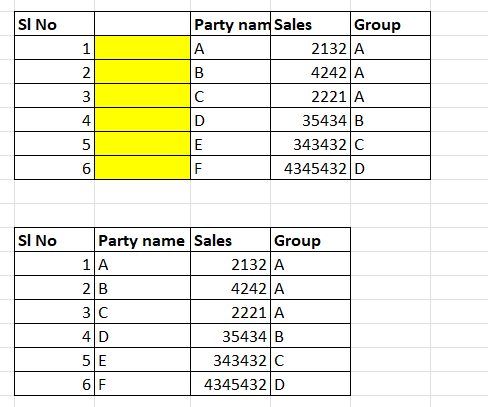
- After 11 nos of number letter then automatically convert to text format
- Delete Row-> Select Row -> Ctrl+ –
- Delete Column -> Select Column -> Ctrl+ –
- Delete Cell -> Ctrl+ –
9. Advance formating:
- Merge & center – Alt + HMC
- Merge across with both rows – > Alt + HMA
- Unmerge-> Alt + HMU

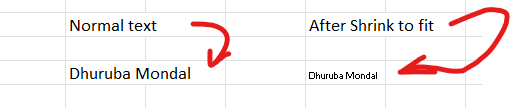
4. Shrink to fit -> Home-> Alignment settings-> Click shrink to fit.
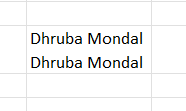
5. Write text then Alt+enter for next line
10. Clipboard group
- Ctrl +C for Copy
- Ctrl + V for Paste
- Ctrl + X for Cut
How to work Clipboard:
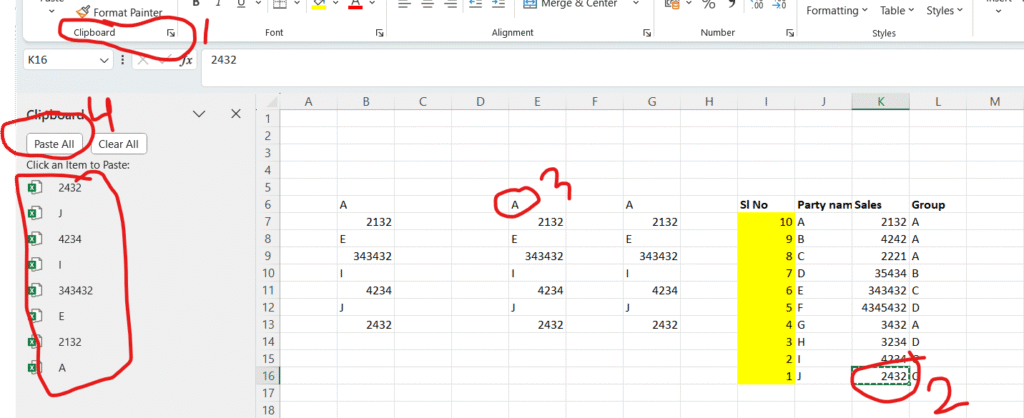
Click clipboard option> select your text > copy > copy > copy Then select your paste area then paste all.
How to work Format painter:
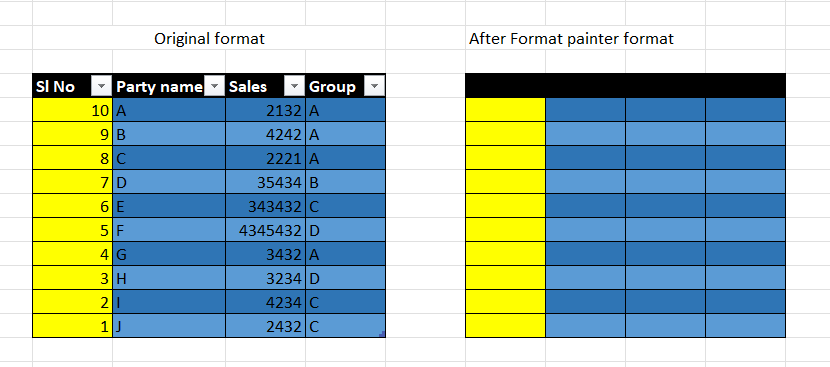
Select area then click format painter option then select your area.
11. Miscellaneous features:
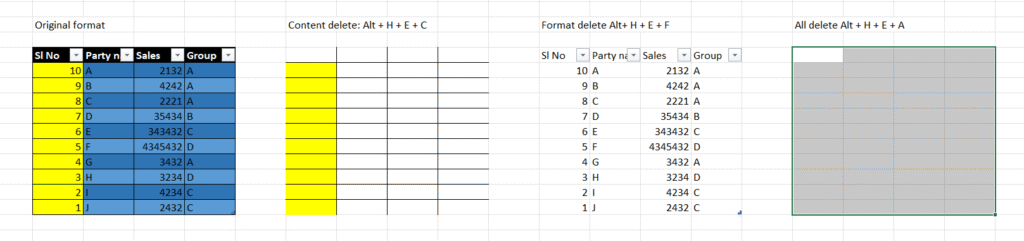
Content delete: Alt + H + E + C
Format delete: Alt + H + E + F
All delete: Alt + H + E + A
Undo: Ctrl + Z
Redo: Ctrl + Y
How to Delete/Rename/Colour Sheet:
- Right click on Sheet tab > Delete/Rename/Colour
How to tight tabs in particular area:
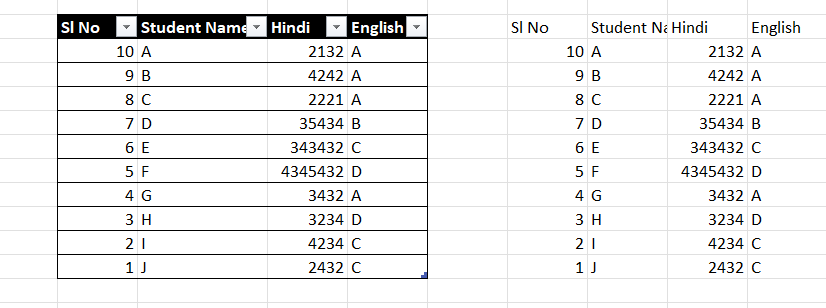
Select table > Home > Format as table > select any format.
12. Basic Formulas:
- Sum Formula: =Sum(A2:A5) then enter. Or, = Sum(A2,A3,A4,A5) then Enter. Or, = Sum(A2,A4,A5) then Enter. Or, Alt+ =
- Average: =AVERAGE(D5:F5)
- Maximum: =MAX(D5:F5)
- Minimum: =MIN(D5:F5)
- Cunt: =COUNT(D5:F5) for only number, date, time & %
- CountA: =COUNTA(D5:F5) for all count factor, character & text
- Countblank: =COUNTBLANK(D5:F5) for blank/empty
- %: =H5/300
- % through cell reference: =H5/$Q$3
- % through cell reference: =H5/$Q$3 or =E7/$G7 or =E7/G$7 for F4
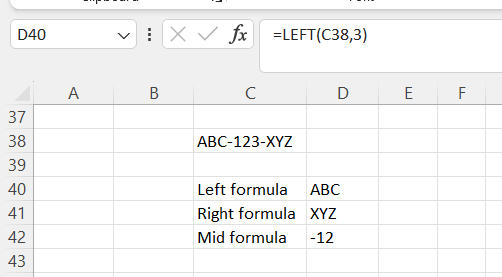
11. Left formula: =LEFT(C38,3)
12. Right formula: =RIGHT(C38,3)
13. Mid formula: =MID(C38,4,3) mid for middle value
14. Len formula: =LEN(C38) Len for Length value ( = len(select text) enter)
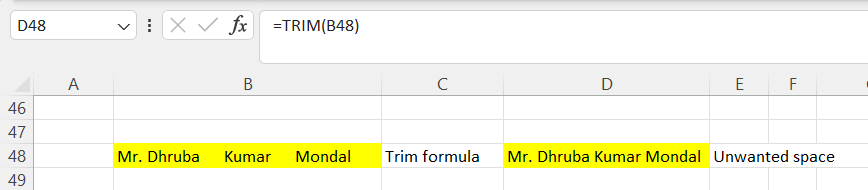
15. Trim formula: =TRIM(B48) for Unwanted space remove
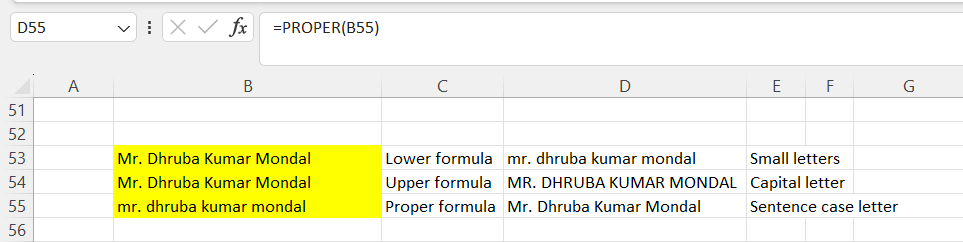
16. Lower formula: =LOWER(B53)
17. Upper formula: =UPPER(B54)
18. Proper formula: =PROPER(B55)
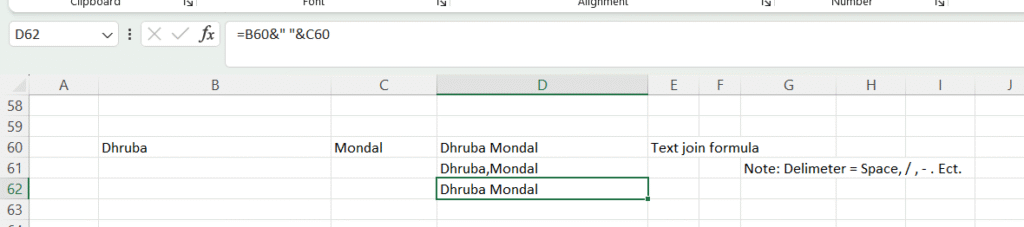
19. Textjoin formula: =TEXTJOIN(” “,TRUE,B60,C60)
20. same shortcut formula: =B60&” “&C60
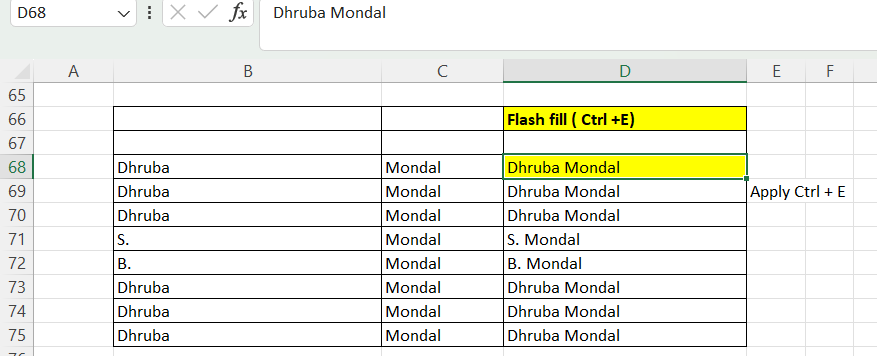
21. Flash fill (ctrl+E): for Autofill value
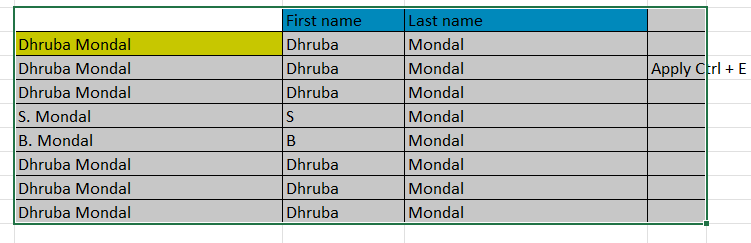
22. Text split through flash fill
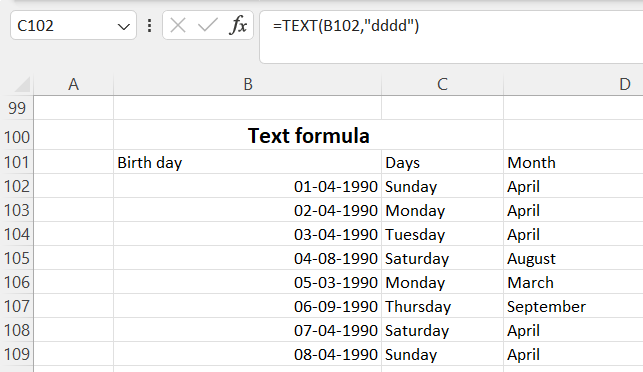
23. text formula: =TEXT(B102,”dddd”)
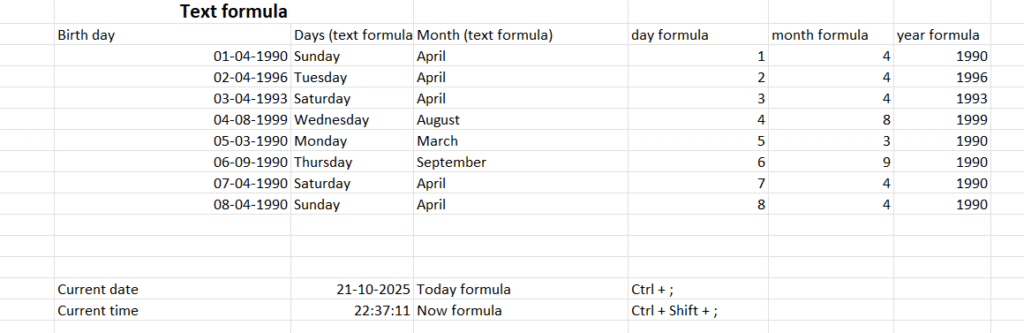
24. Today formula: =TODAY() for Current date ( Ctrl + ; )
25. Now formula: =NOW() for Current time (Ctrl + Shift + ; )
26. day formula: =DAY(B102) for day check
27. month formula: =MONTH(B102) for month check
28. year formula: =YEAR(B102) for year check
29.Days formula ( total no of days): =DAYS(C118,B118) or, =(end day – start day)

30. Day360: =DAYS360(B118,C118) for total 360 days per year
31. Networkdays: =NETWORKDAYS(B118,C118) for Saturday & Sunday consider in holiday
32. Networkdays ( holiday): =NETWORKDAYS(B118,C118,A118:A124) for Saturday & Sunday consider in holiday + one holiday day is holiday
33. Networkdays.intl: =NETWORKDAYS.INTL(B118,C118,11) for Only Sunday is holiday
34. Networkdays.intl (Holiday): =NETWORKDAYS.INTL(B118,C118,11,A118) for Only Sunday + holiday day is holiday
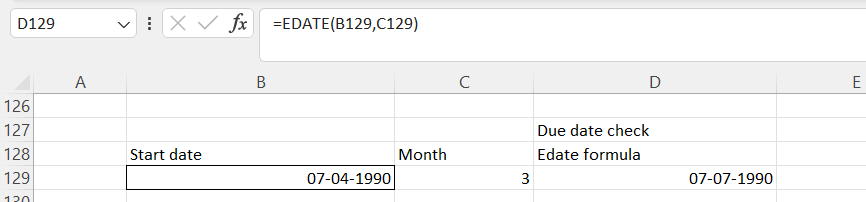
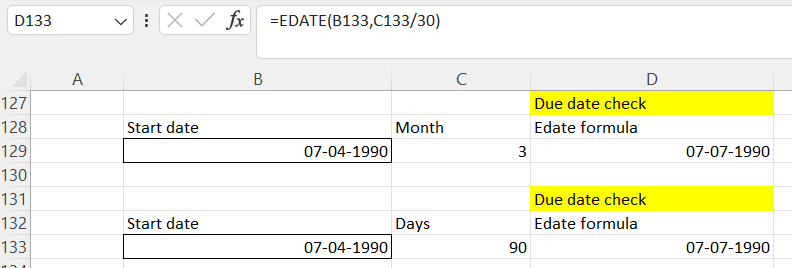
35. Edate formula: =EDATE(B129,C129) for Due date check
36. Edate formula: =EDATE(B133,C133/30) for Due date check (ex. 30 for no of days in a month)
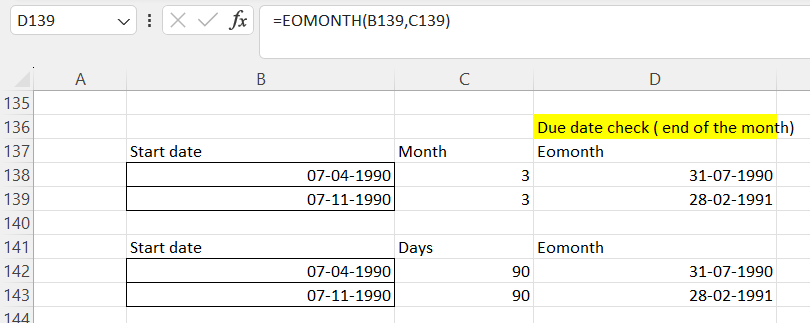
37. Eomonth: =EOMONTH(B138,C138) or days wise =EOMONTH(B142,C142/30) for Due date check ( end of the month)
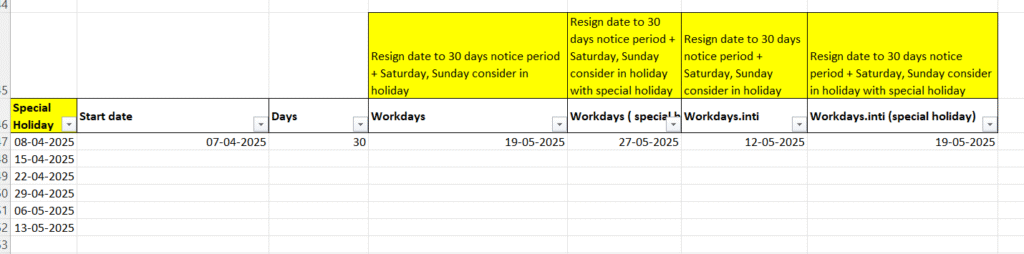
38. Workdays: =WORKDAY(B147,C147) (Resign date to 30 days notice period + Saturday, Sunday consider in holiday)
39. Workdays (special holiday): =WORKDAY(B147,C147,A147:A152) consider with special holiday (Resign date to 30 days notice period + Saturday, Sunday consider in holiday with special holiday)
40. Workdays.inti: =WORKDAY.INTL(B147,C147,11) (Resign date to 30 days notice period + Saturday, Sunday consider in holiday)
41. Workdays.inti (special holiday): =WORKDAY.INTL(B147,C147,11,A147:A152) consider with special holiday (Resign date to 30 days notice period + Saturday, Sunday consider in holiday with special holiday)
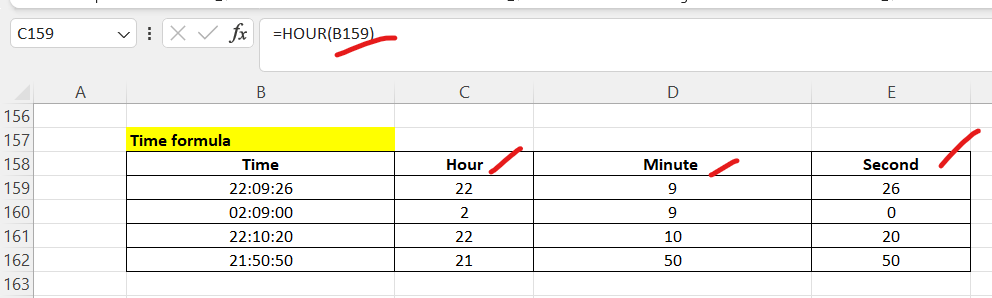
42. Hour: =HOUR(B159)
43. Minute: =MINUTE(B159)
44. Second: =SECOND(B159)
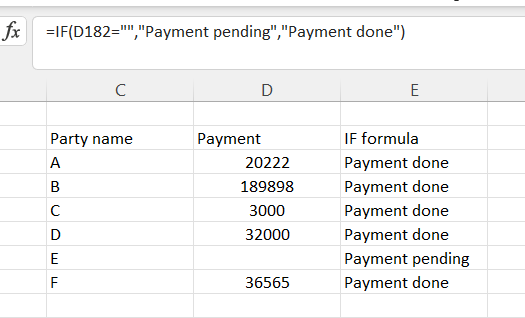
45. IF formula: =IF(H172>45,”Pass”,”Fail”)
=IF(D182=””,”Payment pending”,”Payment done”)
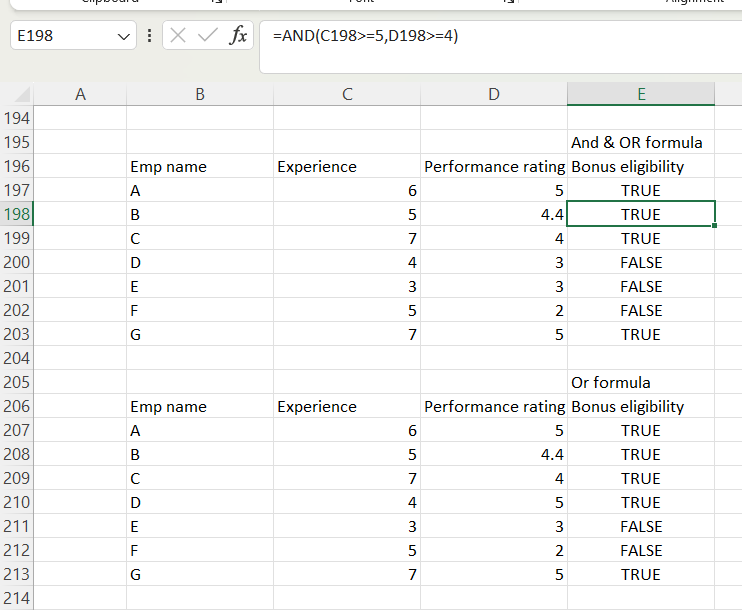
46. And formula: =AND(C200>=5,D200>=4)
47. Or formula: =OR(C209>5,D209>4)
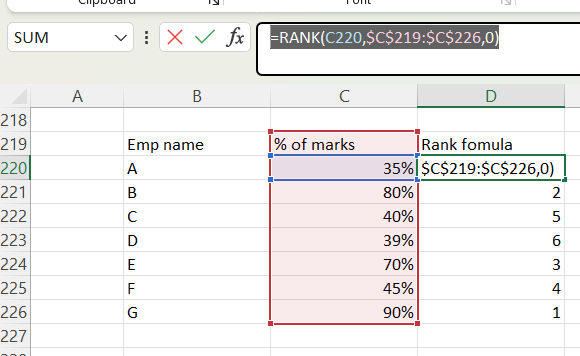
48. Rank formula: =RANK(C220,$C$219:$C$226,0)
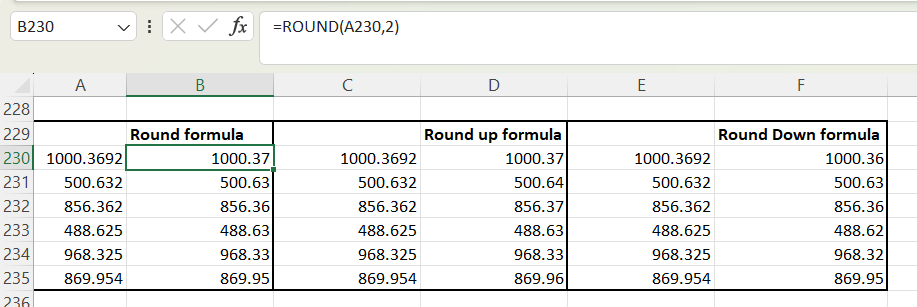
49. Round formula: =ROUND(A230,2)
50. Roundup formula: =ROUNDUP(C230,2)
51. Rounddown: =ROUNDDOWN(E230,2)
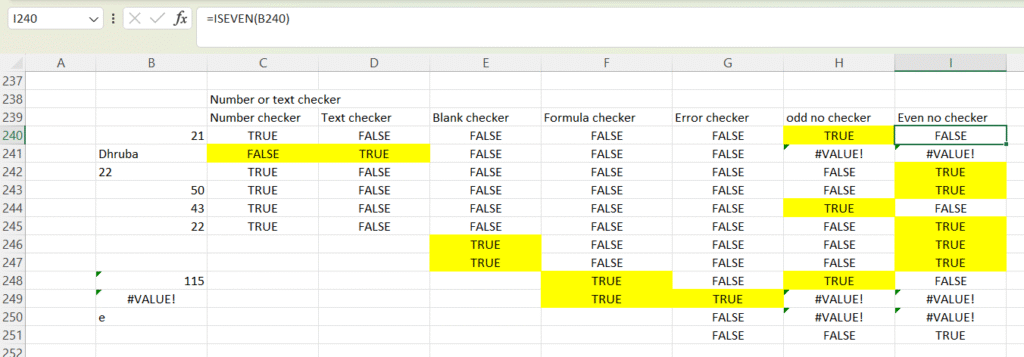
52. Number checker formula: =ISNUMBER(B240)
53. Text checker formula: =ISTEXT(B240)
54. Blank checker formula: =ISBLANK(B240)
55. Formula checker formula: =ISFORMULA(B240)
56. Error checker formula: =ISERROR(B240)
57. odd no checker formula: =ISODD(B240)
58. Even no checker formula: =ISEVEN(B240)
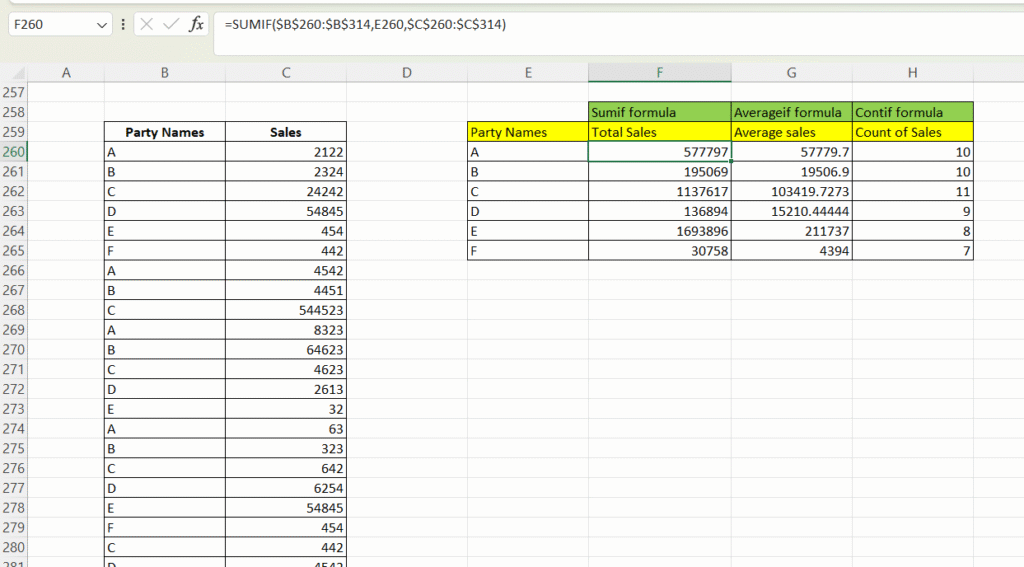
59. Sumif formula: =SUMIF($B$260:$B$314,E260,$C$260:$C$314)
60. Averageif formula: =AVERAGEIF($B$260:$B$314,E260,$C$260:$C$314)
61. Contif formula: =COUNTIF($B$260:$B$314,E260)
62.
54.
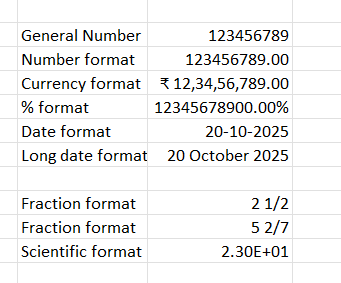
13. Number format:
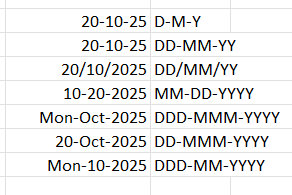
14. Custom data format:
Select date > Number format tabs > Custom
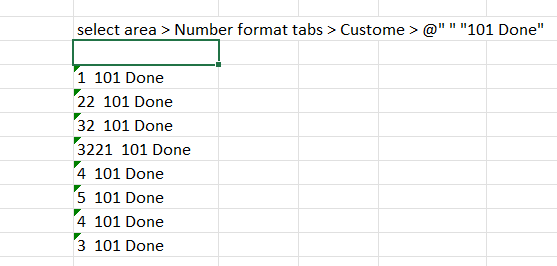
@ uses:
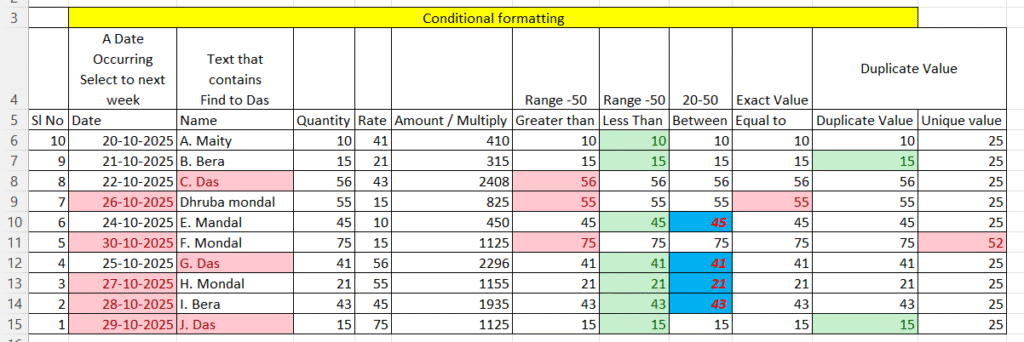
15. Conditional formatting:
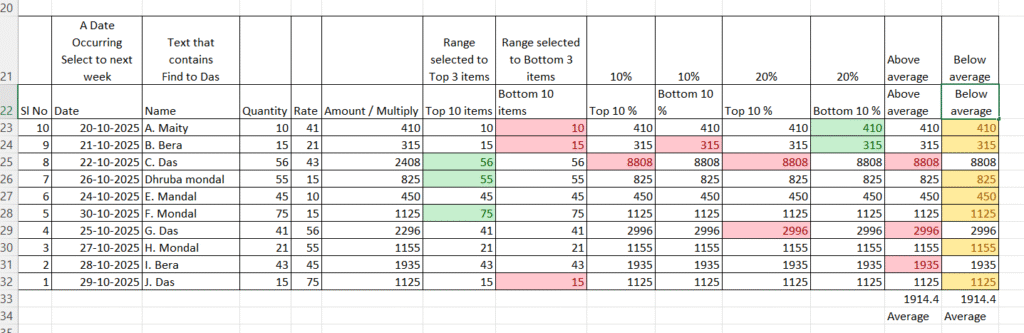
Highlight Cell rules:
- Greater than:
- Less Than:
- Between:
- Equal to:
- Text that contains:
- A Date Occurring:
- Duplicate Value / Unique value:
- Manage rules > conditional formatting > Manage rules > Show conditional rules for : This worksheet or current selection > select your data format for formatting change or manage > Edit rules> Format only cells that contain > click Format option > select any changes Ex. font size, font colour, font style, border, fill colour etc.
- Clear rules: Clear rule from selected cell.
Clear rule from entire sheet
Top / Bottom Rules:
- Top 10 items
- Bottom 10 items
- Top 10 %
- Bottom 10 %
- Above average
- Below average
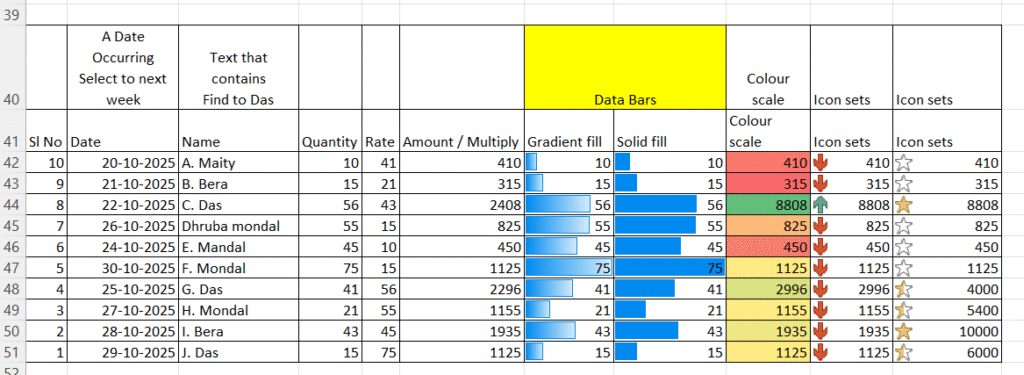
More formatting:
- Gradient fills:
- Solid fill:
- Colour scale:
- Icon sets:
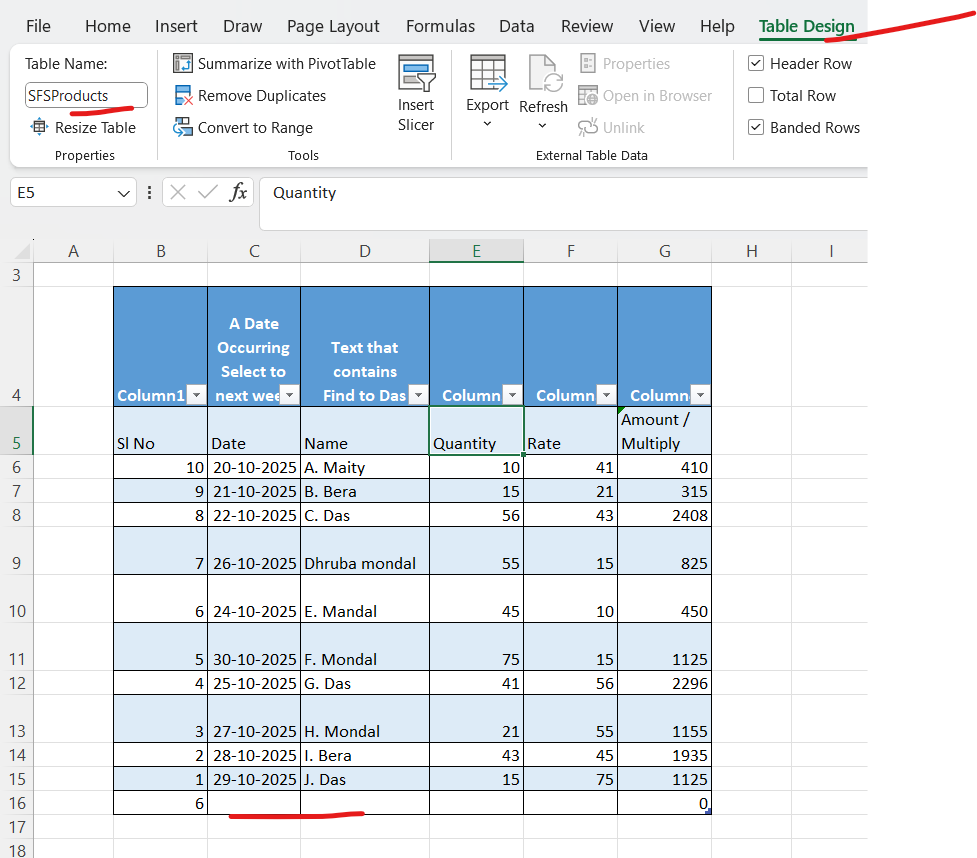
16. Table creation:
Create Table > Table design > Table name: SFSproducts
17. Table Slicers:
For Filter
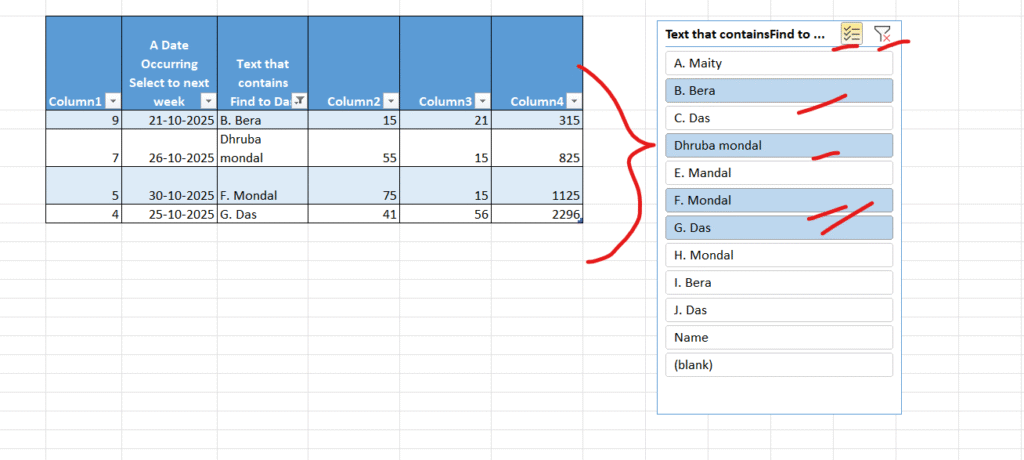
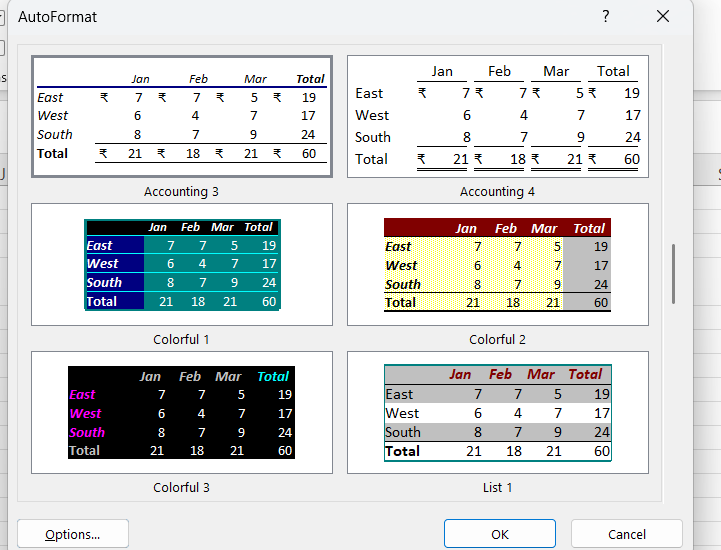
Table auto format : Alt+OA
18. Cell Style
Select table > Home > Cell style > select any cell style then page layout menu > colour > select any colour.
19. Format:
- Row Height
- Autofit Row Height
- Column Width
- Autofit column width
- Default width
- Hide & unhide > Row, column & sheet
- Rename sheet
- Move or copy sheet
- tab color
- Protect sheet
- Lock cell
- Format cells
Move or copy sheet: How to copy data one workbook to other workbook
Open both workbook > select sheet > right click > move or copy sheet > To book > select any workbook > create a copy > ok
20. Fill Series:
- Fill Down: Ctrl + D
- Fill Right: Ctrl + R
- Fill UP:
- Fill Left:
- Series:
How to work Series:
Go to Home > Fill > Series >
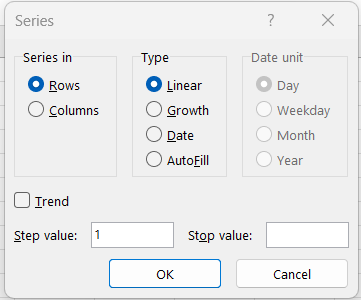
Series in Rows or Columns.
Type:
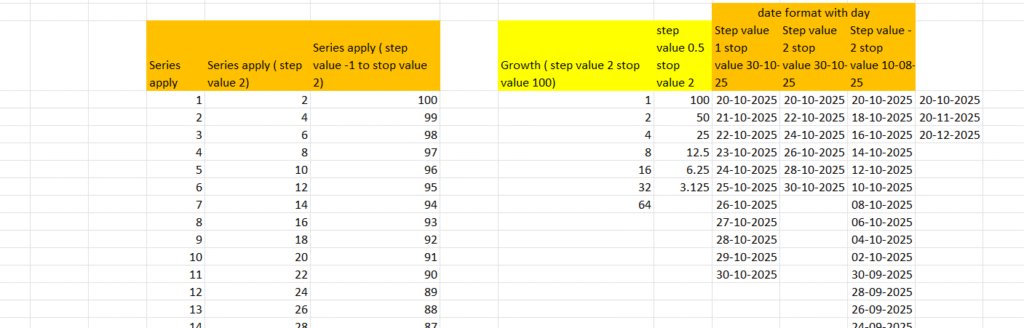
Linear: means serial wise data + or –
Growth: Multiply value
Date: – day/ weekday / month / year
21. Filters:
Ctrl + Shift + L
Filter
Clear filter
Filter by colour
Number filters:
22. Sorting:
Sort A to Z
Sort Z to A
Custom sort: cell value / cell colour / font colour
Copy level / Add level / Delete level
23. Go to / Go to special
Go to Cell address Ex. Ctrl + G > A100000 or A15….
or click on name box > A100000
Go to Special:
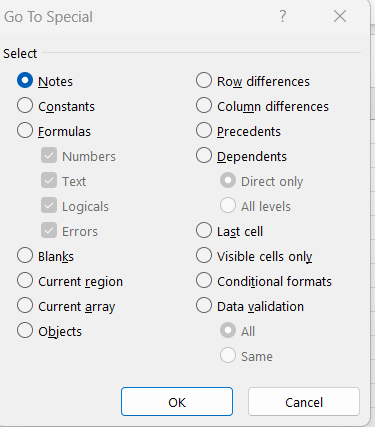
Notes: for search all notes cell.
Constants: Numbers/ Text/ Logical / Errors searching
Formulas: Numbers/ Text/ Logical / Errors searching
Blanks: for search all blank area
Row Differences:
Column Differences:
Last Cell: for last cell check in the entire sheet.
Row Differences:
Select two column > Ctrl + G > special > Row differences > ok ( shortcut: Ctrl + \ )
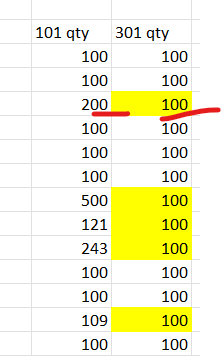
Column Differences:

24. Paste Special:
Ctrl + Alt + V
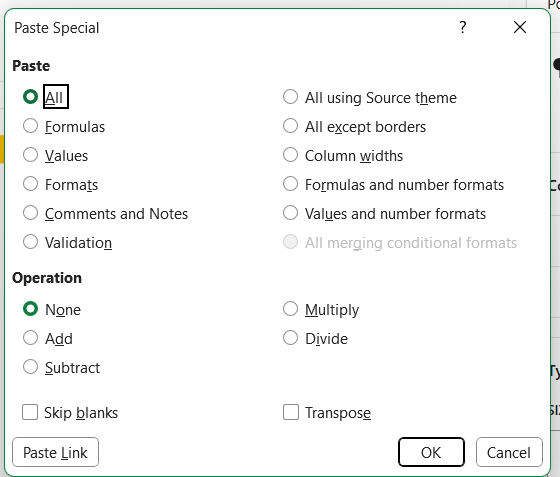
All: for simple paste ( ctrl + V)
Formulas: for formulas copy
Values:
Formats: For format copy
Comments and Notes: for comments and notes.
Validation:
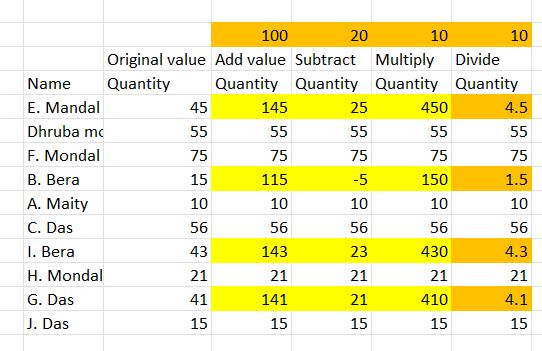
Operation:
Add: for addition
Subtract:
Multiply:
Divide:
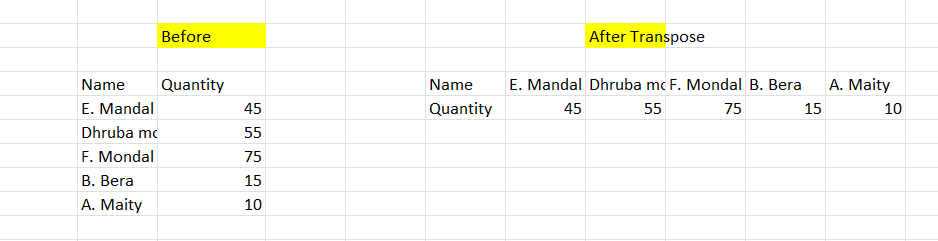
Transpose:
Skip Balance: Copy 2nd value then click on first value then paste special > skip balance > ok
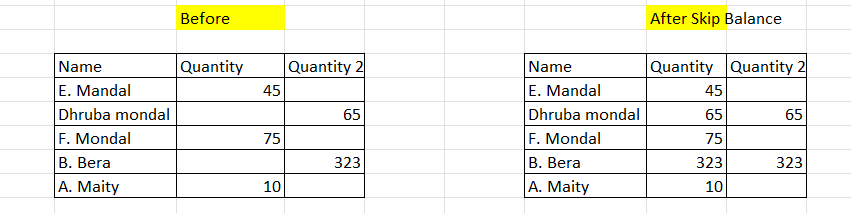
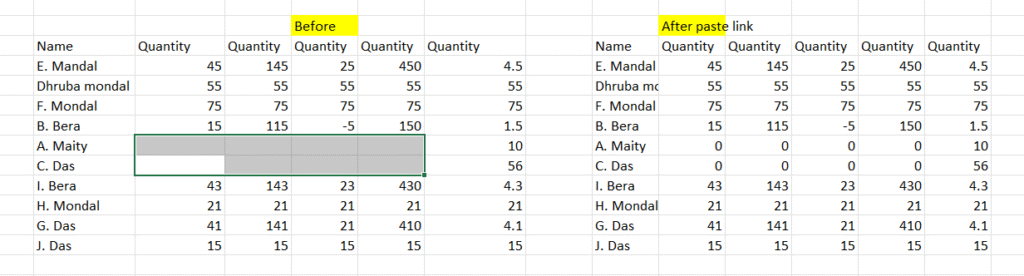
Paste Link: Same to same format link generate to other file.
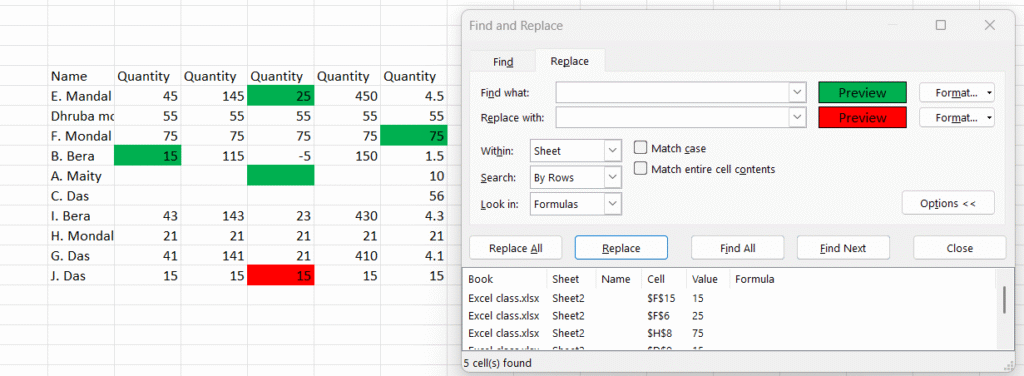
25. Find & Replace:
- Find and replace with colour: Replace > format > select fill colour. – clear find & replace format
- Find and replace with text
26. Insert tab:
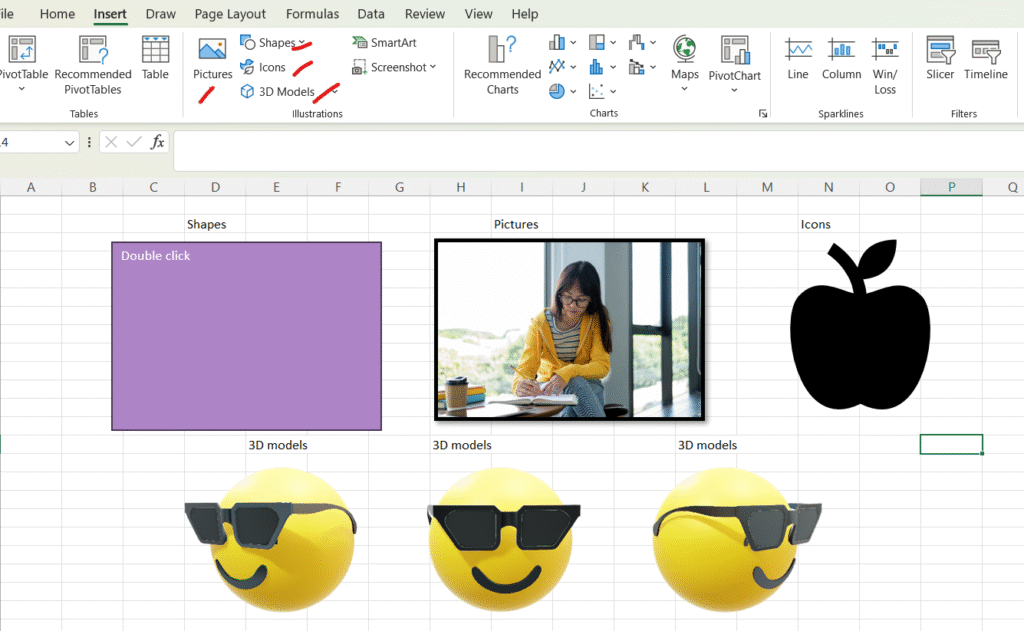
How to insert image in shape
Insert shapes > right click > format shape > fill> picture or texture fill > insert > stock images> select any image
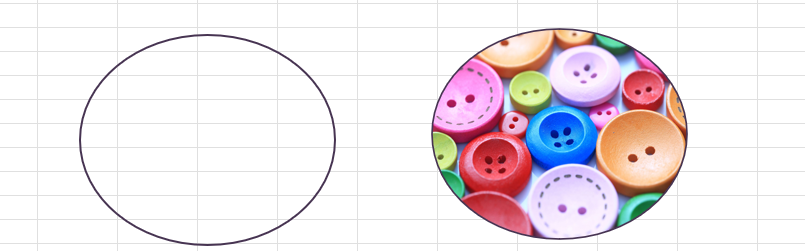
Right click > edit points > select any style

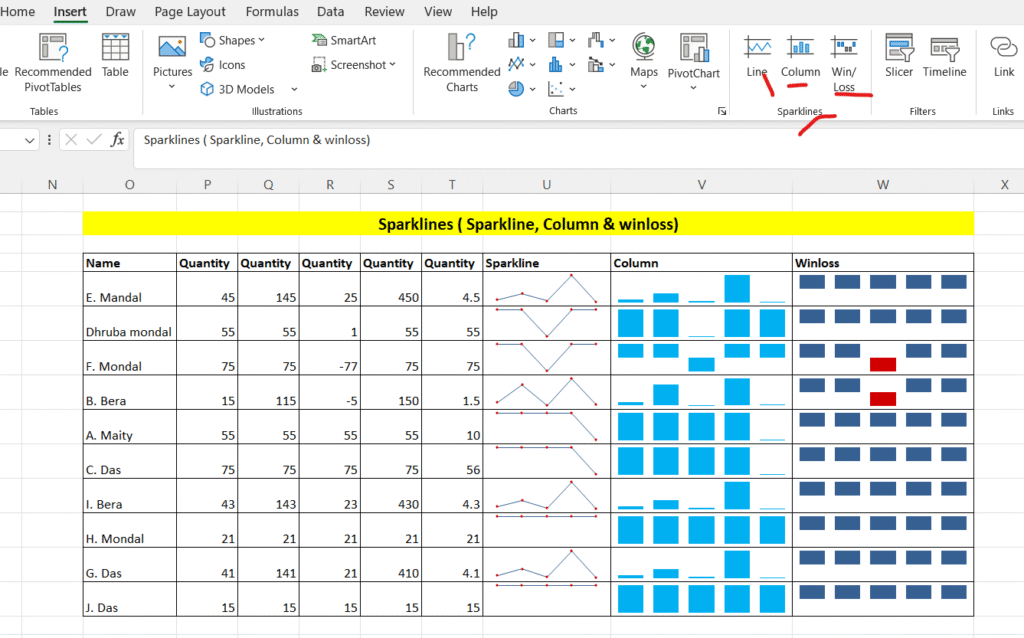
How to work sparklines:
How to add link / Hyperlink
Insert > link > ( ctrl + k) place in this document > select your sheet or cell > ok