
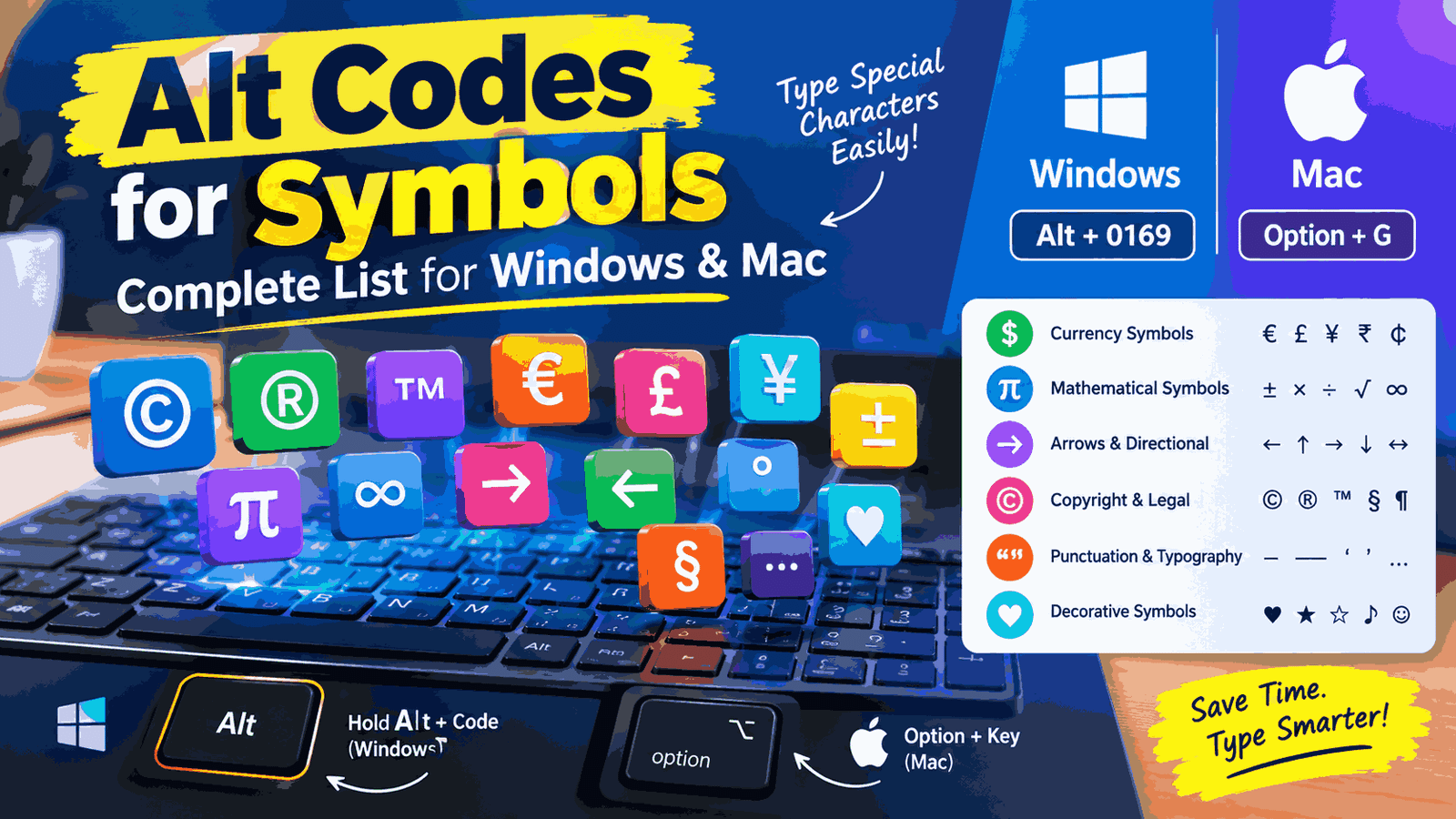
If you’re preparing a blog post on Alt codes for symbols, this topic is useful for students, office workers, bloggers, programmers, and anyone who wants to type special characters quickly. Below is a practical guide to Windows Alt codes, Mac keyboard shortcuts, currency symbols, mathematical signs, arrows, Greek letters, and other special characters.


1. What Are Alt Codes?
Alt codes are keyboard shortcuts used primarily in Windows to insert special characters that may not appear directly on a keyboard. Depending on the character and application, you can enter a code using the numeric keypad while holding the Alt key.
For example:
| Symbol | Description | Windows Alt code |
|---|---|---|
| © | Copyright | Alt + 0169 |
| ® | Registered trademark | Alt + 0174 |
| ™ | Trademark | Alt + 0153 |
| ° | Degree | Alt + 0176 |
| ± | Plus-minus | Alt + 0177 |
| € | Euro | Alt + 0128 |
| £ | Pound sterling | Alt + 0163 |
| ¥ | Yen | Alt + 0165 |
| • | Bullet | Alt + 0149 |
| § | Section sign | Alt + 0167 |
Note: These are common Windows numeric-keypad codes. Some characters have different results depending on whether you use a leading zero, the active application, or its character encoding.
2. How to Use Alt Codes in Windows
Step 1: Enable Num Lock
Turn on Num Lock if you’re using a keyboard with a dedicated numeric keypad.
Cherry Stream Desktop – Low Profile Keycap – Repair – iFixit Repair Guide
Step 2: Hold the Alt key
Keep the Alt key pressed while entering the code on the numeric keypad.
Computer keyboard with copyright symbol on one key. 3D illustration.
Step 3: Release Alt
For example, hold Alt, type 0169, then release Alt to enter © in many Windows applications.
Important: The number row above the letters usually doesn’t work the same way as the dedicated numeric keypad. On laptops without one, try the operating system’s character picker or an external numeric keypad.
3. Complete Alt Codes List for Windows
A. Currency symbols
| Symbol | Name | Alt code |
|---|---|---|
| ₹ | Indian Rupee | No universal legacy Alt code |
| $ | Dollar | Alt + 36 |
| € | Euro | Alt + 0128 |
| £ | British Pound | Alt + 0163 |
| ¥ | Japanese Yen | Alt + 0165 |
| ¢ | Cent | Alt + 0162 |
| ₩ | Korean Won | Alt + 8361* |
| ¤ | Currency Sign | Alt + 0164 |
*Extended codes may vary by application and keyboard configuration. For ₹, use the Windows symbol picker or copy the character directly.
B. Mathematical symbols
| Symbol | Name | Alt code |
|---|---|---|
| ± | Plus-minus | Alt + 0177 |
| × | Multiplication | Alt + 0215 |
| ÷ | Division | Alt + 0247 |
| √ | Square root | Alt + 251 |
| ∞ | Infinity | Alt + 236 |
| ≠ | Not equal | Alt + 8800* |
| ≤ | Less than or equal | Alt + 8804* |
| ≥ | Greater than or equal | Alt + 8805* |
| π | Pi | Alt + 227 |
| µ | Micro sign | Alt + 0181 |
| ¼ | One-quarter | Alt + 0188 |
| ½ | One-half | Alt + 0189 |
| ¾ | Three-quarters | Alt + 0190 |
| ° | Degree | Alt + 0176 |
| ² | Superscript 2 | Alt + 0178 |
| ³ | Superscript 3 | Alt + 0179 |
*These larger decimal values are not reliable universal Alt-key combinations. For Unicode symbols, use the Windows symbol picker or the Unicode method in compatible Microsoft Office apps.
C. Copyright, legal and office symbols
| Symbol | Name | Alt code |
|---|---|---|
| © | Copyright | Alt + 0169 |
| ® | Registered trademark | Alt + 0174 |
| ™ | Trademark | Alt + 0153 |
| § | Section | Alt + 0167 |
| ¶ | Paragraph | Alt + 0182 |
| † | Dagger | Alt + 0134 |
| ‡ | Double dagger | Alt + 0135 |
| • | Bullet | Alt + 0149 |
| ‰ | Per mille | Alt + 0137 |
| № | Numero sign | Varies by input method |
D. Arrows and directional symbols
| Symbol | Name | Unicode |
|---|---|---|
| ← | Left arrow | U+2190 |
| ↑ | Up arrow | U+2191 |
| → | Right arrow | U+2192 |
| ↓ | Down arrow | U+2193 |
| ↔ | Left-right arrow | U+2194 |
| ↕ | Up-down arrow | U+2195 |
| ⇐ | Left double arrow | U+21D0 |
| ⇒ | Right double arrow | U+21D2 |
| ⇔ | Left-right double arrow | U+21D4 |
| ➜ | Heavy arrow | U+279C |
For these Unicode values, use the hex code + Alt + X method in compatible Office applications, or open the symbol picker.
E. Punctuation and typography
| Symbol | Name | Alt code |
|---|---|---|
| – | En dash | Alt + 0150 |
| — | Em dash | Alt + 0151 |
| ‘ | Left single quotation mark | Alt + 0145 |
| ’ | Right single quotation mark | Alt + 0146 |
| “ | Left double quotation mark | Alt + 0147 |
| ” | Right double quotation mark | Alt + 0148 |
| … | Ellipsis | Alt + 0133 |
| ¡ | Inverted exclamation | Alt + 0161 |
| ¿ | Inverted question mark | Alt + 0191 |
| « | Left guillemet | Alt + 0171 |
| » | Right guillemet | Alt + 0187 |
| ¦ | Broken bar | Alt + 0166 |
F. Hearts, stars and decorative symbols
These characters can be copied directly. Their availability depends on the font and application.
| Symbol | Description | Unicode |
|---|---|---|
| ♥ | Heart | U+2665 |
| ♡ | White heart | U+2661 |
| ★ | Black star | U+2605 |
| ☆ | White star | U+2606 |
| ♪ | Musical note | U+266A |
| ♫ | Musical notes | U+266B |
| ☎ | Telephone | U+260E |
| ☀ | Sun | U+2600 |
| ☺ | Smiling face | U+263A |
| ✓ | Check mark | U+2713 |
| ✗ | Ballot X | U+2717 |
| ♻ | Recycling symbol | U+267B |
4. How to Type Special Symbols on a Mac
Mac computers do not generally use the same Windows Alt-code system. The easiest options are the Character Viewer and keyboard shortcuts.
Review: Apple Wireless Keyboard (aluminum) | AppleInsider
Option-key shortcuts
Some characters can be entered with the Option (⌥) key, sometimes combined with Shift. The exact shortcut depends on your keyboard layout.
Use emoji and symbols on Mac – Apple Support
Character Viewer
Press Control + Command + Space in many macOS apps to open the character and emoji viewer. Search for a symbol and double-click it to insert it.
Mac symbol shortcut examples
| Symbol | Common Mac shortcut |
|---|---|
| © | Option + G |
| ® | Option + R |
| ™ | Option + 2 on many US layouts |
| ° | Option + Shift + 8 on many US layouts |
| • | Option + 8 on many US layouts |
| – | Option + - on many US layouts |
| — | Option + Shift + - on many US layouts |
| € | Varies by keyboard layout |
For a complete set of Unicode characters, macOS also supports a Unicode Hex Input keyboard source. Once enabled in Keyboard settings, hold Option and enter the character’s hexadecimal code for supported characters. Apple Support (IN)+1
5. Quick Symbol Copy-and-Paste Table
Copy any character from this table into Word, Excel, email, a website, or a social media post.
Currency
₹Indian Rupee Copy
$Dollar Copy
€Euro Copy
£Pound Copy
¥Yen Copy
¢Cent Copy
Select a symbol to copy it to your clipboard.
6. Troubleshooting Alt Codes
If a symbol does not appear correctly, try these steps:
- Check that Num Lock is enabled when using a dedicated numeric keypad.
- Include the leading zero for codes that require it, such as
Alt + 0169. - Remember that the number row above the letters is not a substitute for the numeric keypad in the standard Alt-code method.
- Try the Windows symbol picker by pressing
Windows + .and opening the Symbols section. - In Microsoft Word, try entering a Unicode hexadecimal code followed by
Alt + X. - If a character appears as a box or question mark, try a font that supports that character.
Microsoft documents these methods in its official guide to Windows keyboard tips and its instructions for inserting ASCII and Unicode characters. Microsoft Support+1
7. Frequently Asked Questions
What is the Alt code for the copyright symbol?
Use Alt + 0169 on a Windows numeric keypad.
What is the Alt code for the Indian rupee symbol (₹)?
There is no single legacy Alt code that works universally for ₹. Use the Windows symbol picker, or copy ₹ from this article.
How do I type symbols without a numeric keypad?
On Windows, press Windows + . and use the symbol picker. You can also use Character Map or copy and paste the symbol.
Do Alt codes work on Mac?
Windows-style numeric Alt codes generally do not apply to macOS. Use Option-key shortcuts, Character Viewer, or Unicode Hex Input instead.
Can I use these symbols in Excel and Word?
Yes. Most supported characters can be inserted into Microsoft Office applications, although the input method varies by application and symbol.